# Rust 🦀 Hello world
Rust is a systems programming language that runs blazingly fast, prevents segfaults, and guarantees thread safety.
In this article, we will see:
- how to install Rust on Linux, Mac, and Windows
- how to use rustc to compile a Rust program
- how to use cargo to compile and run a Rust program
- how to use cargo check to check if a Rust program compiles without producing an executable
- how to use cargo build --release to create a production-ready executable
## Rust installation
Rust can be installed by using the rustup tool. Rustup installs rustc, cargo, rustup and other standard command line tools.
### Installing Rust on Linux and Mac
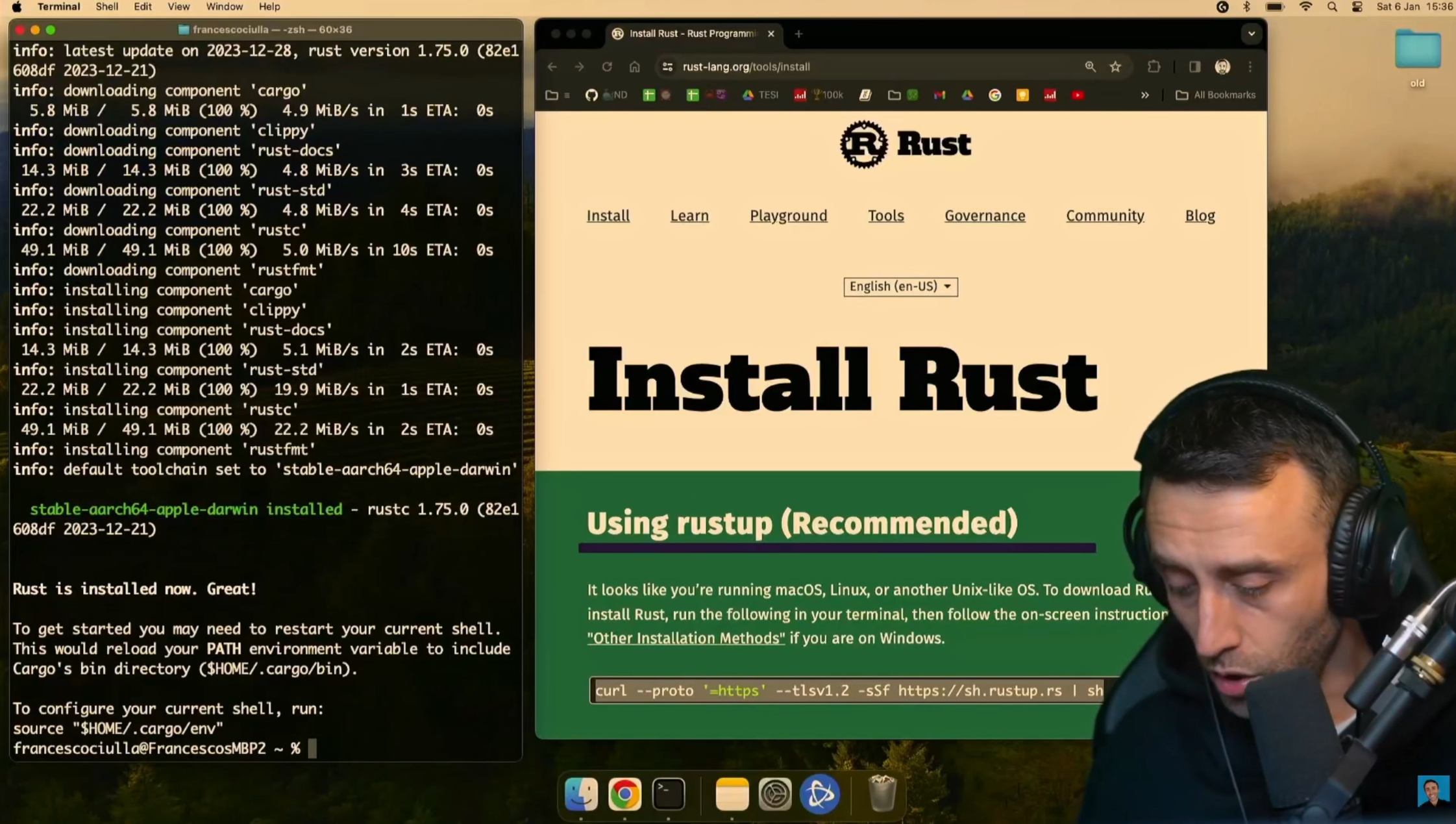
Open your terminal and run the following command:
```bash
curl curl --proto '=https' --tlsv1.2 -sSf https://sh.rustup.rs | sh
```
[](https://youtu.be/R33h77nrMqc)
This downloads and runs rustup-init.sh, which in turn downloads and runs the correct version of the rustup-init executable for your platform.
### Installing Rust on Windows
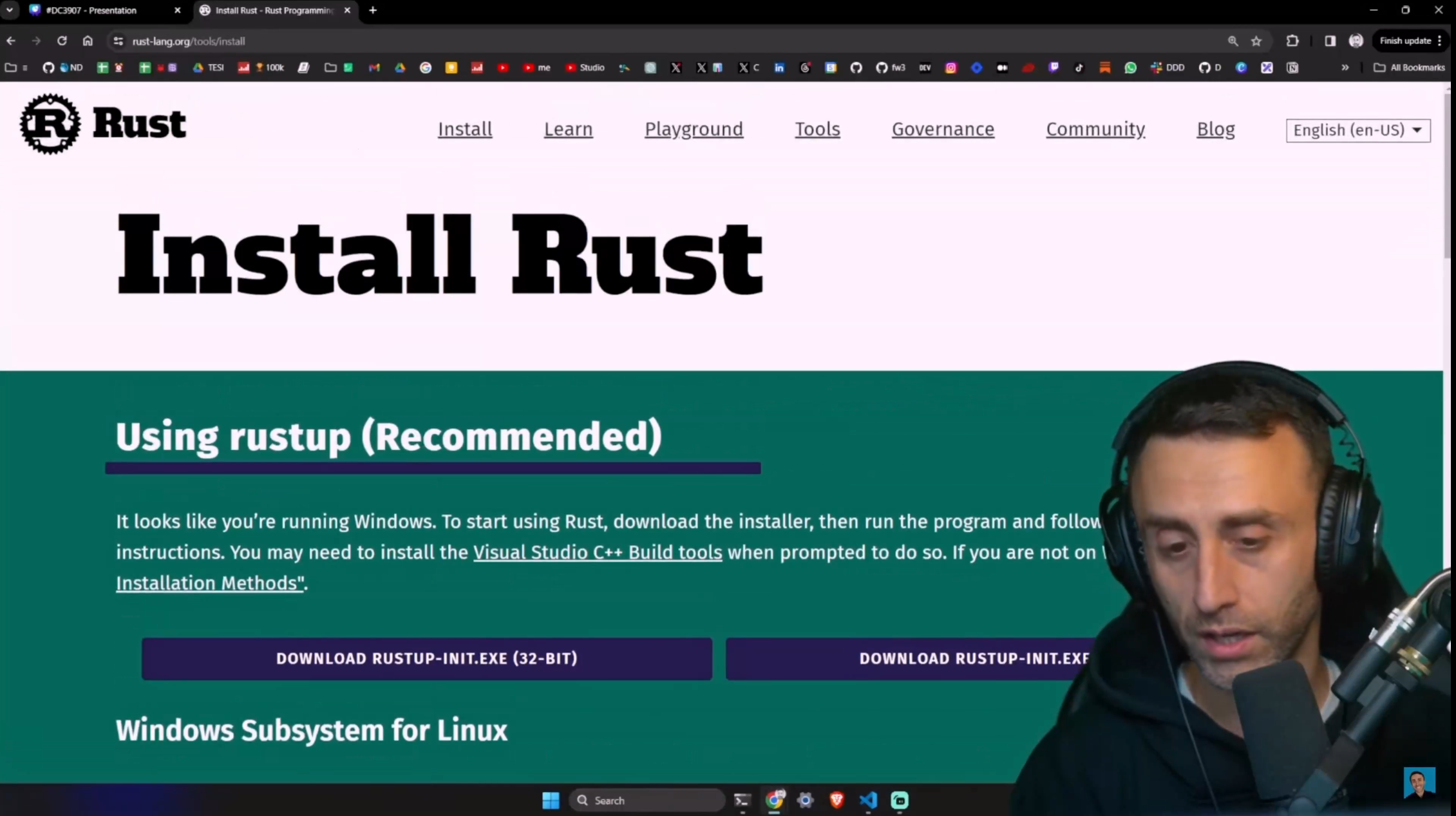
Go to https://www.rust-lang.org/tools/install and download the installer.
[](https://youtu.be/R33h77nrMqc)
You may need to install the Visual Studio C++ Build tools when prompted to do so.
You can also install Rust on a Windows Subsystem for Linux (WSL) distribution.
```
curl --proto '=https' --tlsv1.2 -sSf https://sh.rustup.rs | sh
```
### Verifying the installation
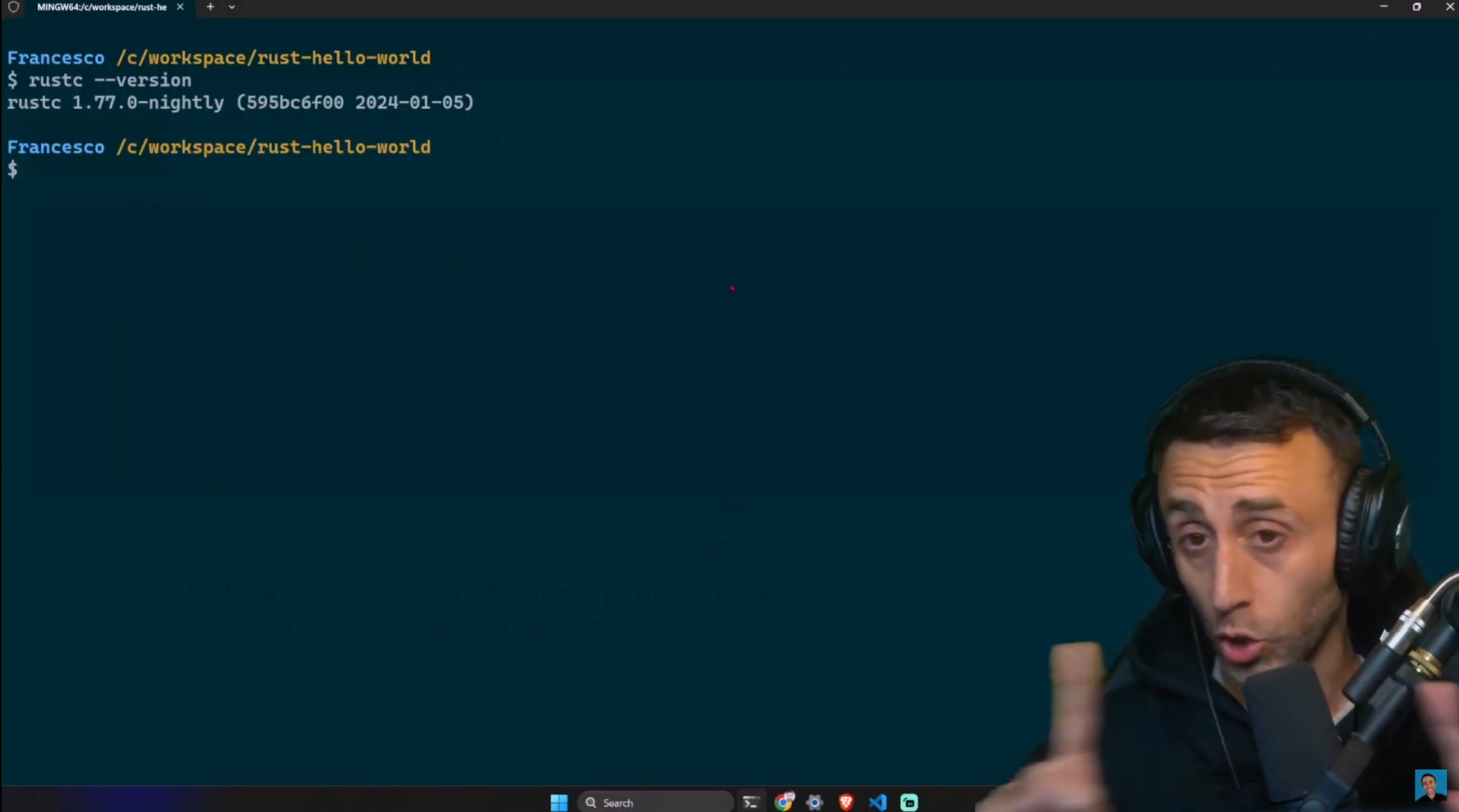
Open your terminal and run the following command:
```bash
rustc --version
```
[](https://youtu.be/R33h77nrMqc)
### Updating Rust
Before we start, a good practice is to update Rust to the latest version.
```bash
rustup update
```
### Uninstalling Rust
Open your terminal and run the following command:
```bash
rustup self uninstall
```
### Rust local documentation
Open your terminal and run the following command:
```bash
rustup doc
```
### Rust playground
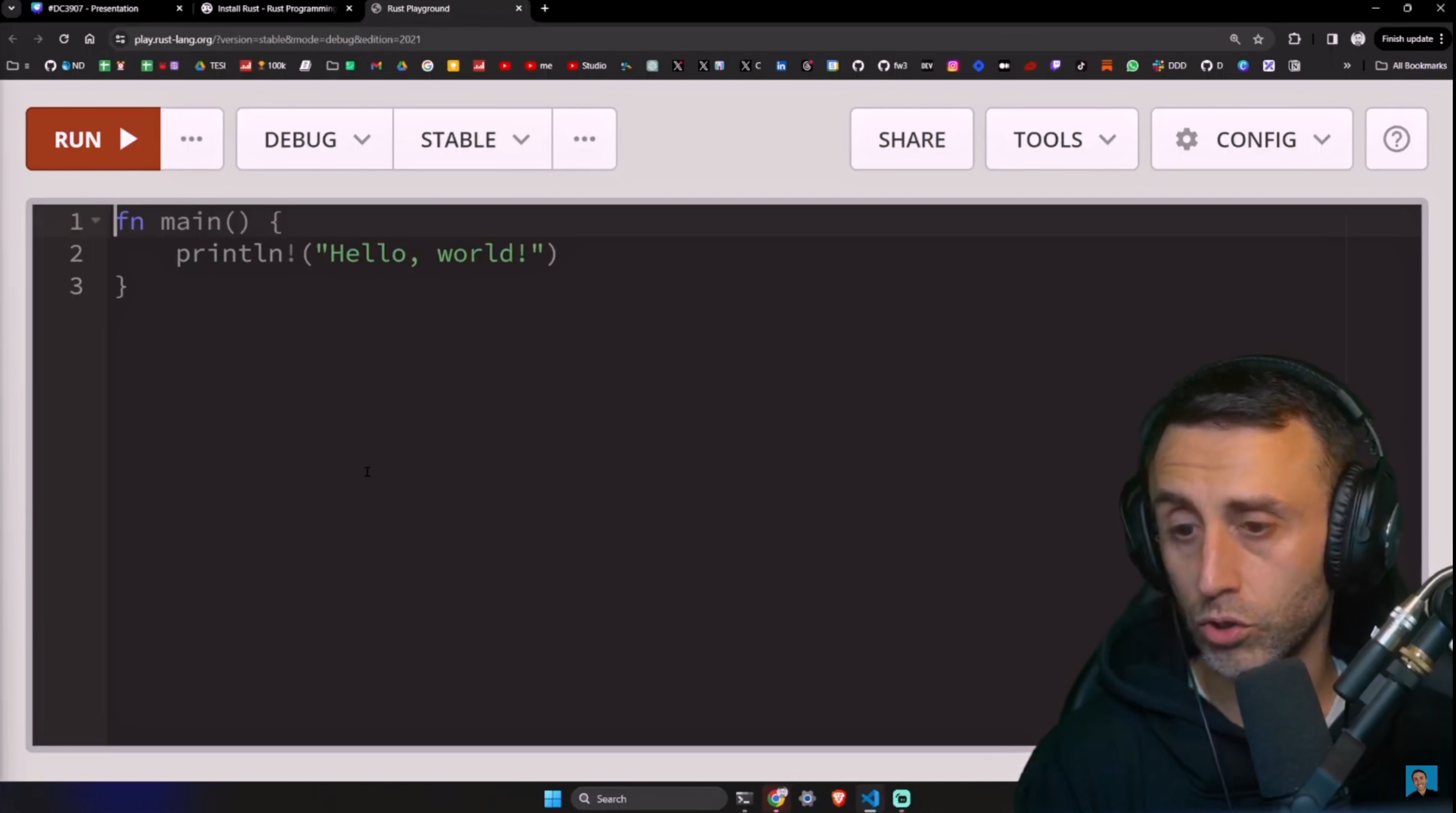
You can also try Rust online using the Rust playground: https://play.rust-lang.org/
[](https://youtu.be/R33h77nrMqc)
We are now ready to start learning Rust.
## Rust hello world
You can use any IDE you want to write Rust code, but I recommend using VSCode with the `rust-analyzer` and `Even Better TOML` extensions.
On an empty folder, open your terminal and run the following command:
```bash
touch main.rs
```
Open the main.rs file in your favorite editor and add the following code:
```rust
fn main() {
println!("Hello world!");
}
```
Your project should look like this:
[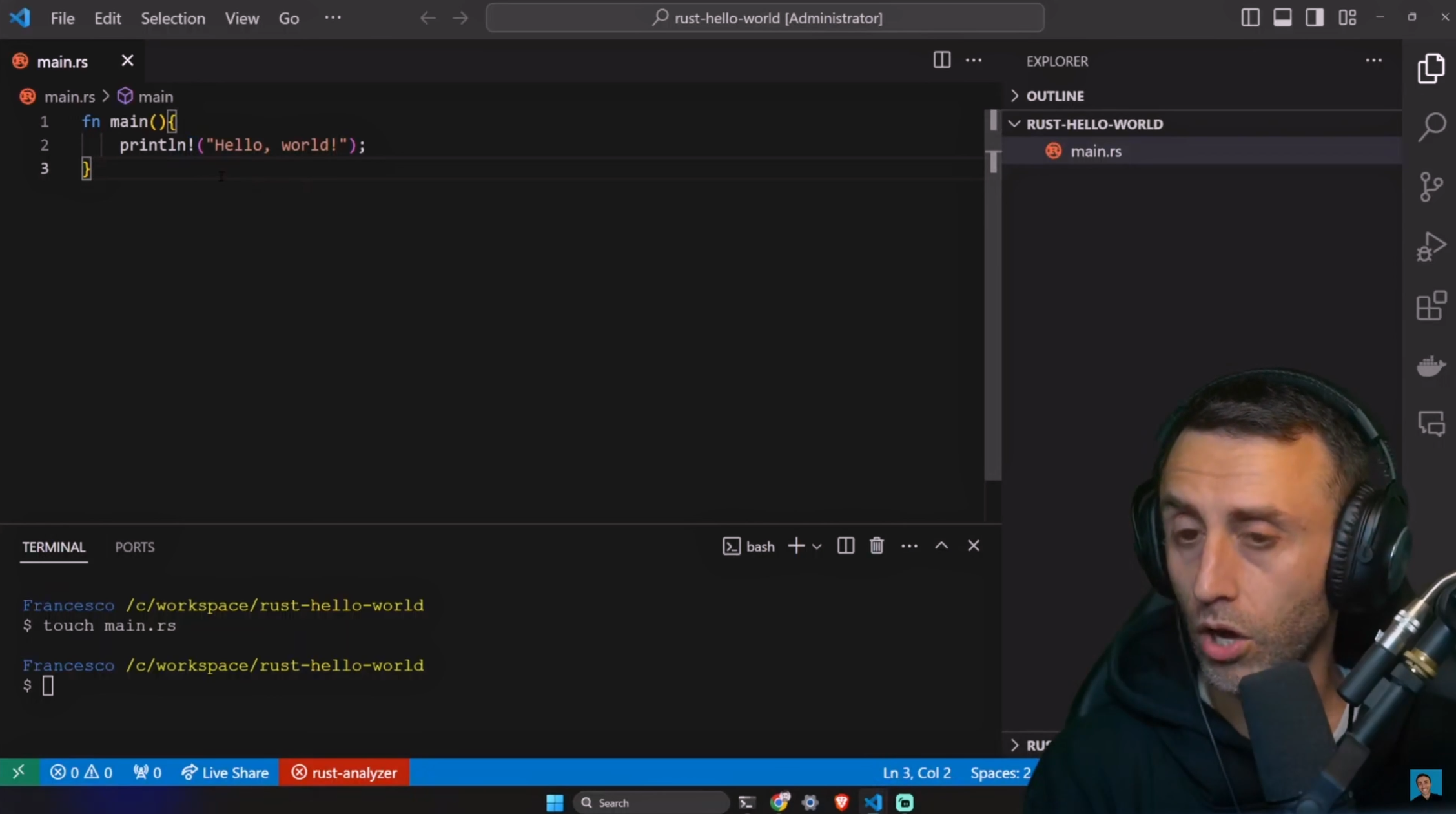](https://youtu.be/R33h77nrMqc)
Rust is a compiled language, meaning your code is translated (compiled) to machine code that your computer can understand.
Open your terminal and run the following command:
```bash
rustc main.rs
```
This will create an executable' main' file in the same directory. Run the following command to execute the file:
```bash
./main
```
You should see the following output:
[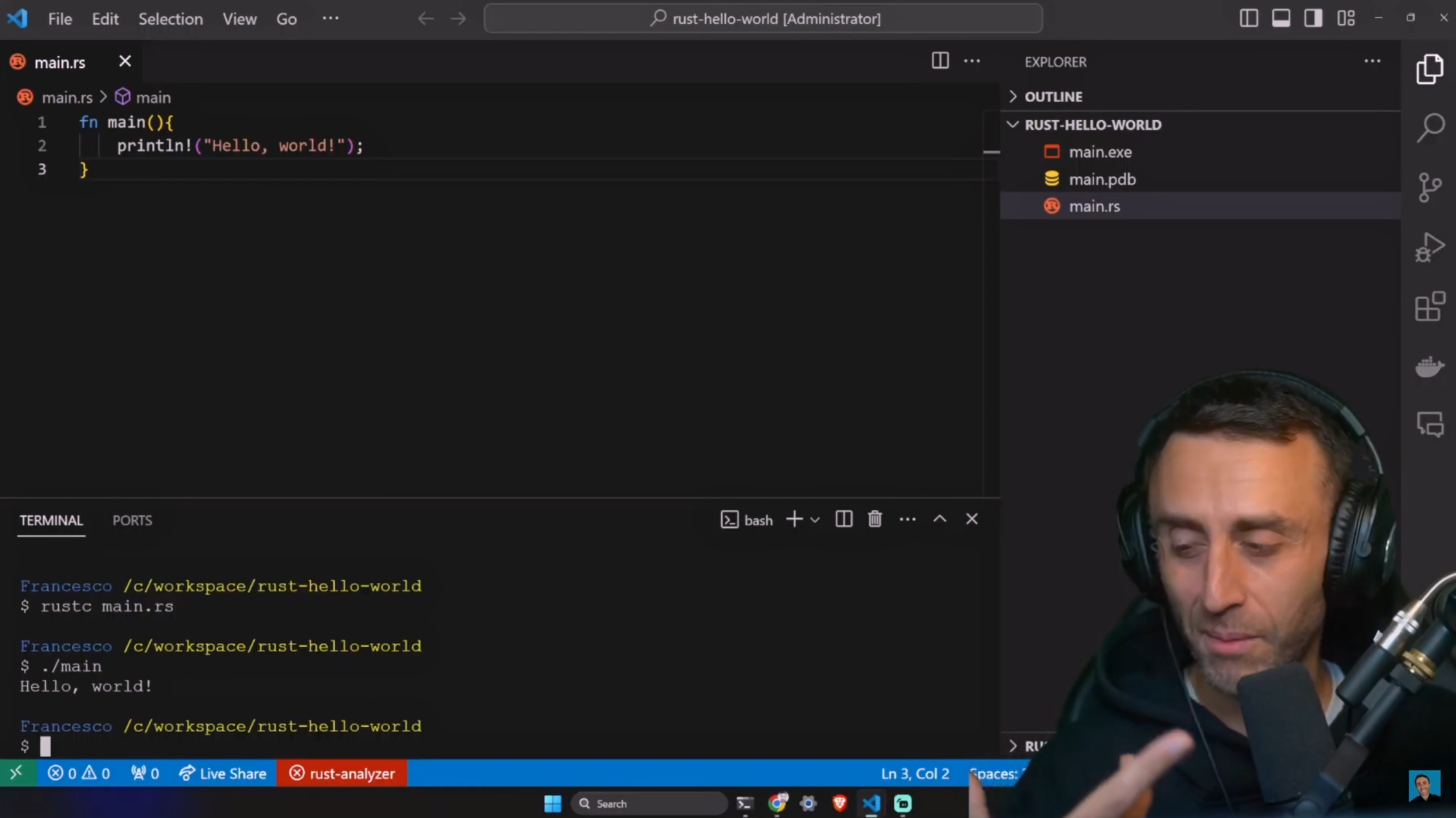](https://youtu.be/R33h77nrMqc)
As we can see, Rust generated a file, which is the executable file that we can run.
Let's try something unusual: open the `main.rs` file and modify it as follows:
```rust
fn main(){
println!("Hello, world!");
//wait for 3 seconds
std::thread::sleep(std::time::Duration::from_secs(3));
}
```
You can add comments in Rust by using `//` for single-line comments and `/* */` for multi-line comments.
Now run the following commands:
```bash
rustc main.rs
./main
```
You should see the following output:
[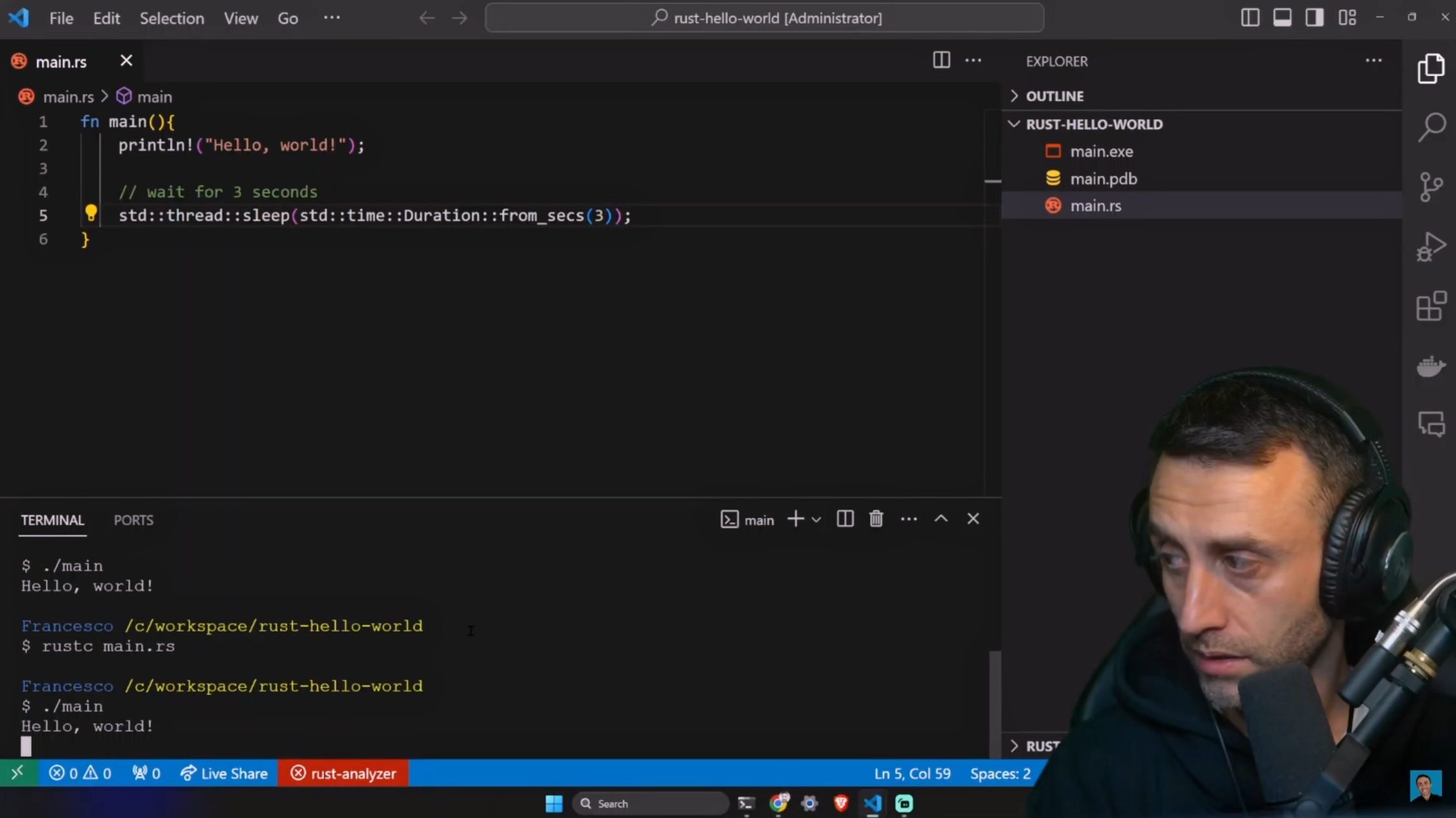](https://youtu.be/R33h77nrMqc)
And let's try to run the executable file generated by double-clicking on it.
[](https://youtu.be/R33h77nrMqc)
This is powerful. We can run the executable file generated by Rust on any computer without having to install Rust on that computer.
This was my first ah-ha moment with Rust.
Of course, this is not a functionality exclusive to Rust, but the fact that it is so embedded in the language is amazing.
## Rust hello world using cargo
Cargo is Rust's build system and package manager.
Cargo handles tasks such as
- building your code
- downloading the libraries your code depends on
- building those libraries
It is similar to npm in Node.js or pip in Python.
You can check the version of cargo by running the following command:
```bash
cargo --version
```
Before proceeding, let's check https://crates.io/, the official Rust package registry.
Let's delete everything in this directory and create a new project using cargo:
```bash
cargo new hello_world
cd hello_world
```
Your project should look like this:
[](https://youtu.be/R33h77nrMqc)
I love how simple the files generated by cargo are.
We have
- a `Cargo.toml` file, which is the manifest file for Rust projects. It contains information about the project, such as the name, version, dependencies, authors, and more.
- a `src` directory containing the project's source code, with a `main.rs` file inside.
- a `.gitignore` file contains the files and directories that git should ignore.
Note: the `cargo new` command creates a new folder, but if you want to create a new project in the current directory, you can run `cargo init` instead.
### Cargo.toml
TOML stands for Tom's Obvious, Minimal Language. It is a simple configuration file format that is designed to be easy to read due to obvious semantics.
If you want to highlight TOML files in VSCode, you can install the `Better TOML` extension.
Now, it is a crucial part of understanding how Rust does work. Rust is a compiled language, meaning your code is translated (compiled) to machine code that your computer can understand.
Open your terminal and run the following command:
```bash
cargo build
```
This will create a `target` directory with a `debug` directory inside. Inside the `debug` directory, you will find an executable file called `hello_world`.
Run the following command to execute the file:
```bash
./target/debug/hello_world
```
And this should output `Hello, world!`.
[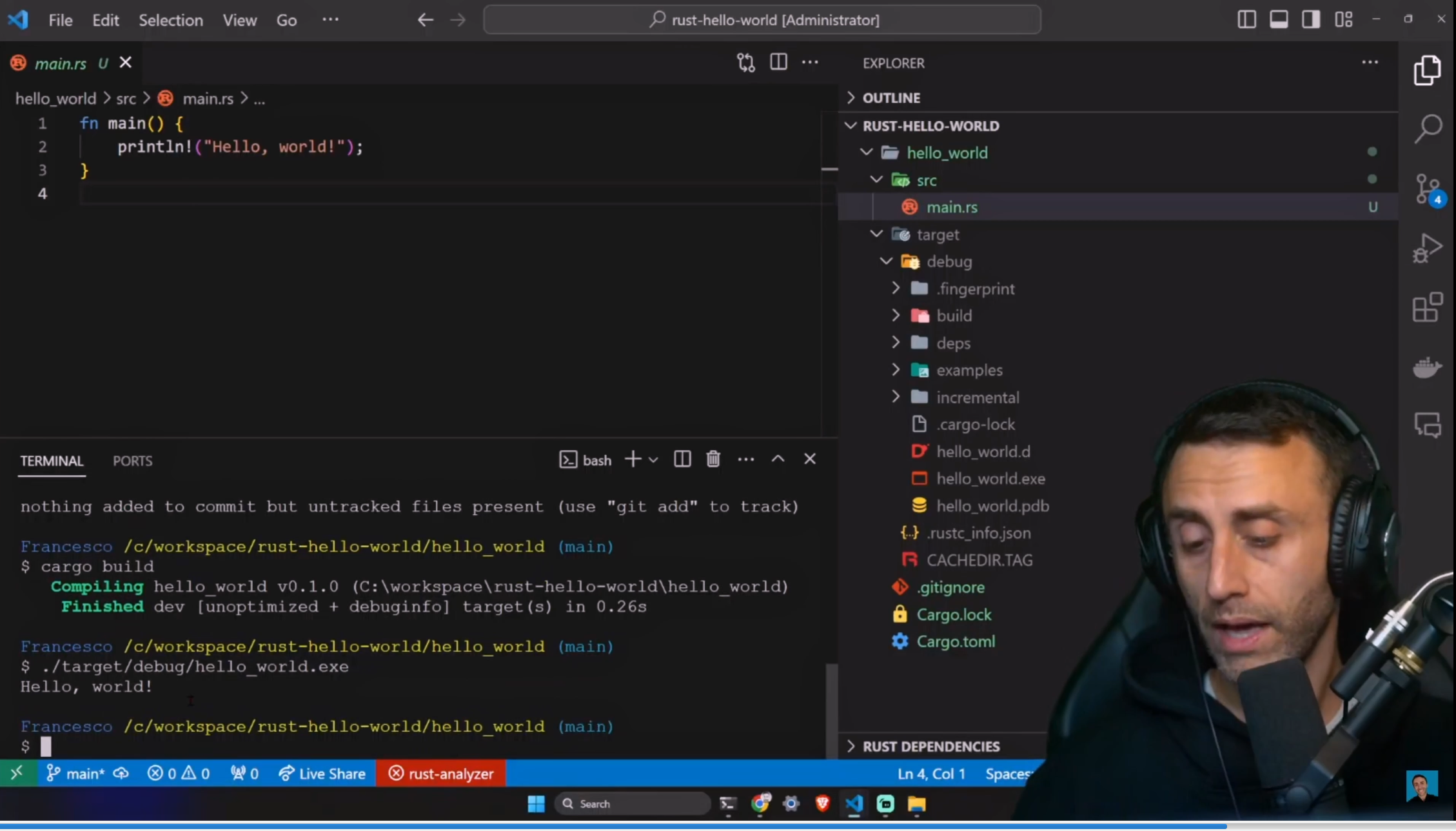](https://youtu.be/R33h77nrMqc)
Good, but we should not have to type `./target/debug/hello_world` every time we want to run our program.
Open the file `main.rs` and make any modifications to the code, for example, instead of `println!("Hello, world!");` write `println!("Hello, cargo!");`.
So let's run the following command:
```bash
cargo run
```
This will compile and run our program.
[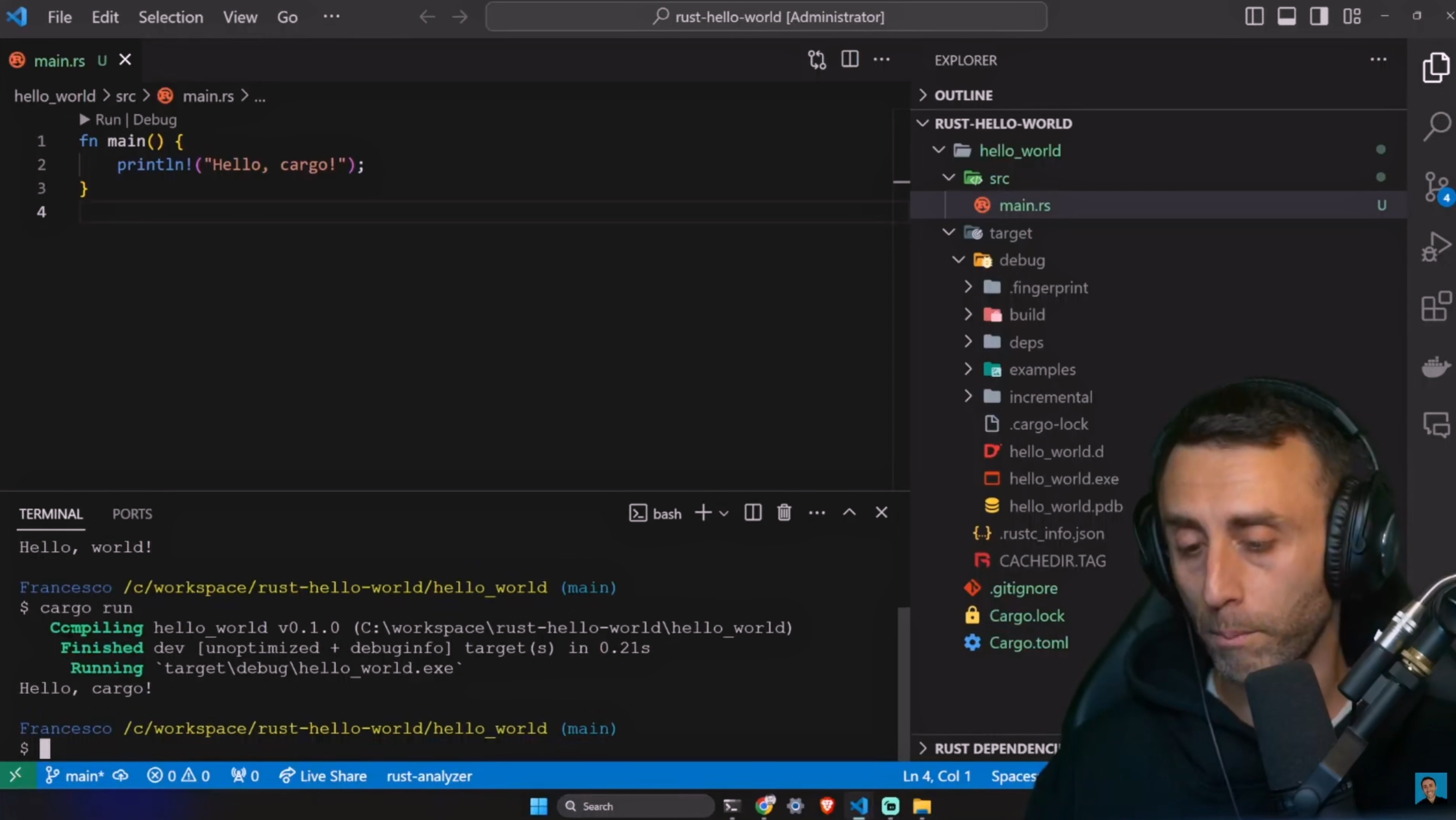](https://youtu.be/R33h77nrMqc)
We can also use the `rust-analyzer` extension to run our program by clicking on the `Run` button.
[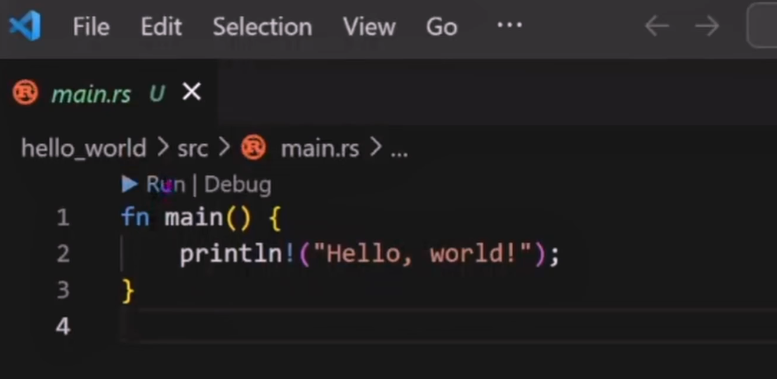](https://youtu.be/R33h77nrMqc)
We can also use `cargo check` to check if our code compiles without producing an executable.
```bash
cargo check
```
Let's try to produce an error on purpose. Open the `main.rs` file and rename the `println!` macro to `pritln!`.
Now run:
```
cargo check
```
You should see the following error:
[](https://youtu.be/R33h77nrMqc)
As you can see, not only does `cargo check` check if the code compiles, but it also provides useful information about the error, suggesting that a similar macro exists.
Let's fix the error and run `cargo check` again:
[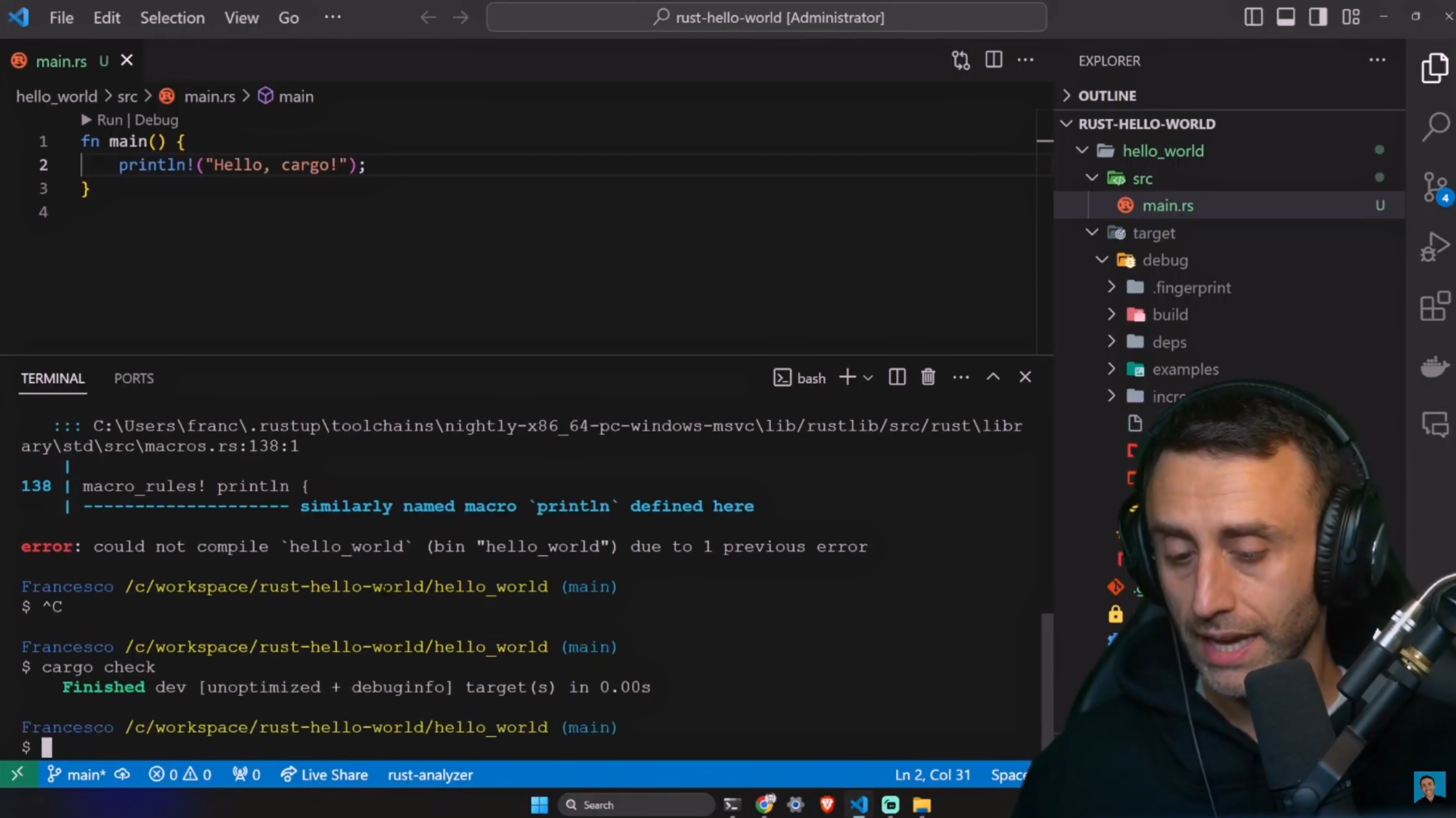](https://youtu.be/R33h77nrMqc)
Now the compiler is happy.
### Cargo.lock
Before we end this, let's discuss the `Cargo.lock` file.
This file is automatically generated by cargo and should not be edited manually.
It contains information about the dependencies of the project, such as the version of the dependencies.
This file is used to ensure that the same version of the dependencies is used by everyone working on the project.
[](https://youtu.be/R33h77nrMqc)
### Building for release
When you are ready to release your project, you can run the following command:
```bash
cargo build --release
```
This will create an executable file in the `target/release` directory.
This executable will be optimized for release, meaning it will run faster than the executable created by `cargo build`.
We can run the executable by running the following command:
```bash
./target/release/hello_world
```
As we can see, it's on a different directory than the executable created by `cargo build`.
[](https://youtu.be/R33h77nrMqc)
## Conclusion
[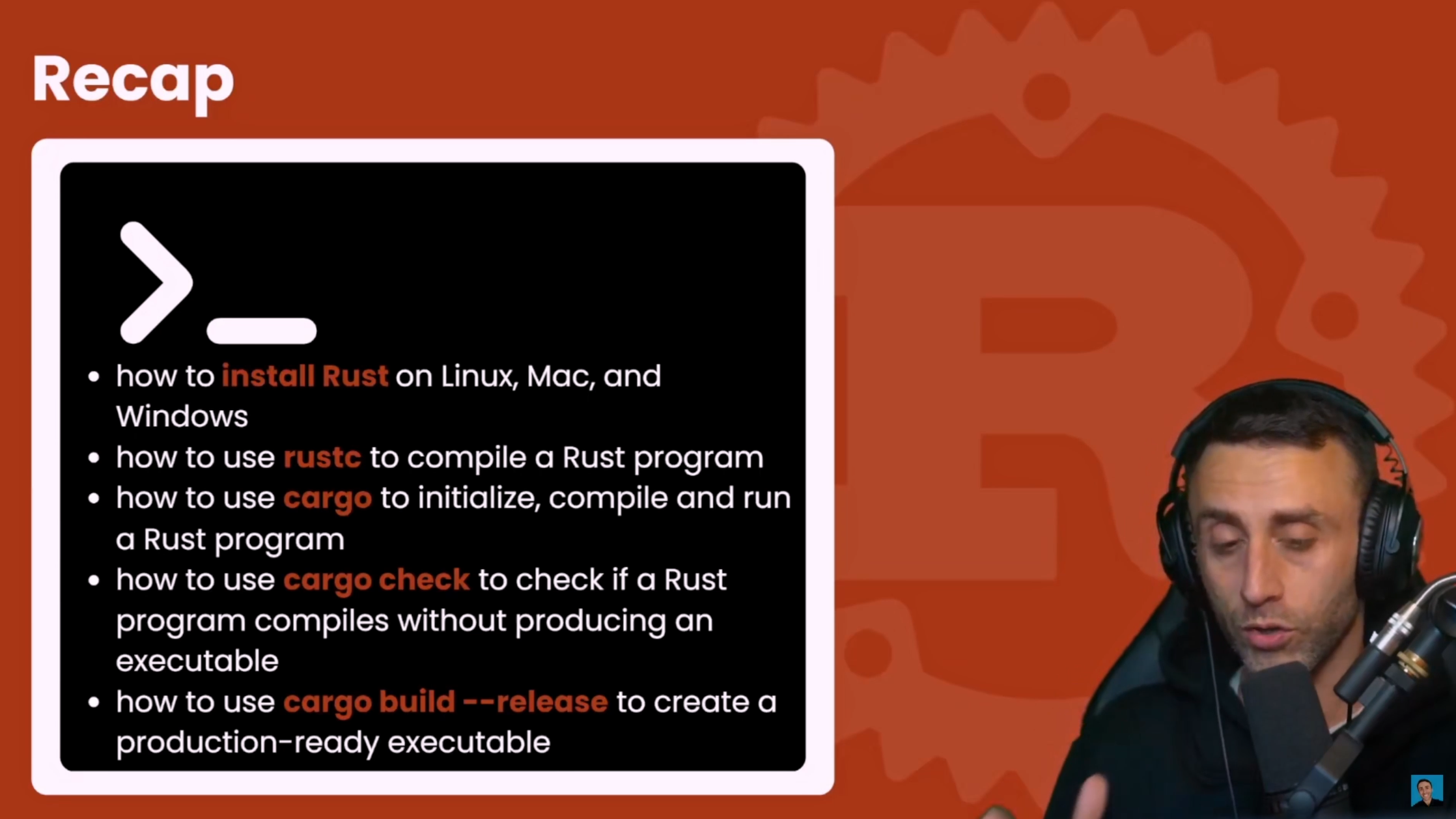](https://youtu.be/R33h77nrMqc)
In this article, we learned
- how to install Rust on Linux, Mac, and Windows
- how to use rustc to compile a Rust program
- how to use cargo to compile and run a Rust program
- how to use cargo check to check if a Rust program compiles without producing an executable
- how to use cargo build --release to create a production-ready executable
If you prefer a video version
If you have any comments, leave them below.
To find Francesco, go here: https://francescociulla.com